学会如何拼接摄像头中的多个录像MP4文件, 成为一整段完整的录像MP4文件
朗读全文
Your browser does not support the audio element.
有什么用 在苹果电脑中
学会如何拼接摄像头中的多个录像MP4文件, 成为一整段完整的录像MP4文件
学会如何拼接多张照片成视频
怎么用 安装ffmpeg
编辑和运行bash a.sh
相关内容
实现方法 批量重命名文件 排序后, MAC中选中多个文件, 然后选重命名,
会弹出一个对话框 如下图所示(这时修改完了的, 重新再重命名的界面)
拼接出mp4文件 1 2 3 4 5 6 7 8 9 10 11 12 13 14 15 16 17 18 19 20 21 22 23 24 25 #! /bin/bash ffmpeg -i a1.mp4 -vcodec copy -acodec copy -vbsf hevc_mp4toannexb 1.ts ffmpeg -i a2.mp4 -vcodec copy -acodec copy -vbsf hevc_mp4toannexb 2.ts ffmpeg -i a3.mp4 -vcodec copy -acodec copy -vbsf hevc_mp4toannexb 3.ts ffmpeg -i a4.mp4 -vcodec copy -acodec copy -vbsf hevc_mp4toannexb 4.ts ffmpeg -i a5.mp4 -vcodec copy -acodec copy -vbsf hevc_mp4toannexb 5.ts ffmpeg -i a6.mp4 -vcodec copy -acodec copy -vbsf hevc_mp4toannexb 6.ts ffmpeg -i a7.mp4 -vcodec copy -acodec copy -vbsf hevc_mp4toannexb 7.ts ffmpeg -i a8.mp4 -vcodec copy -acodec copy -vbsf hevc_mp4toannexb 8.ts ffmpeg -i a9.mp4 -vcodec copy -acodec copy -vbsf hevc_mp4toannexb 9.ts ffmpeg -i a10.mp4 -vcodec copy -acodec copy -vbsf hevc_mp4toannexb 10.ts ffmpeg -i a11.mp4 -vcodec copy -acodec copy -vbsf hevc_mp4toannexb 11.ts ffmpeg -i a12.mp4 -vcodec copy -acodec copy -vbsf hevc_mp4toannexb 12.ts ffmpeg -i a13.mp4 -vcodec copy -acodec copy -vbsf hevc_mp4toannexb 13.ts ffmpeg -i a14.mp4 -vcodec copy -acodec copy -vbsf hevc_mp4toannexb 14.ts ffmpeg -i a15.mp4 -vcodec copy -acodec copy -vbsf hevc_mp4toannexb 15.ts ffmpeg -i a16.mp4 -vcodec copy -acodec copy -vbsf hevc_mp4toannexb 16.ts ffmpeg -i a17.mp4 -vcodec copy -acodec copy -vbsf hevc_mp4toannexb 17.ts ffmpeg -i a18.mp4 -vcodec copy -acodec copy -vbsf hevc_mp4toannexb 18.ts ffmpeg -i a19.mp4 -vcodec copy -acodec copy -vbsf hevc_mp4toannexb 19.ts ffmpeg -i "concat:1.ts|2.ts|3.ts|4.ts|5.ts|6.ts|7.ts|8.ts|9.ts|10.ts|11.ts|12.ts|13.ts|14.ts|15.ts|16.ts|17.ts|18.ts|19.ts" -acodec copy -vcodec copy -absf aac_adtstoasc output.mp4 rm *.ts
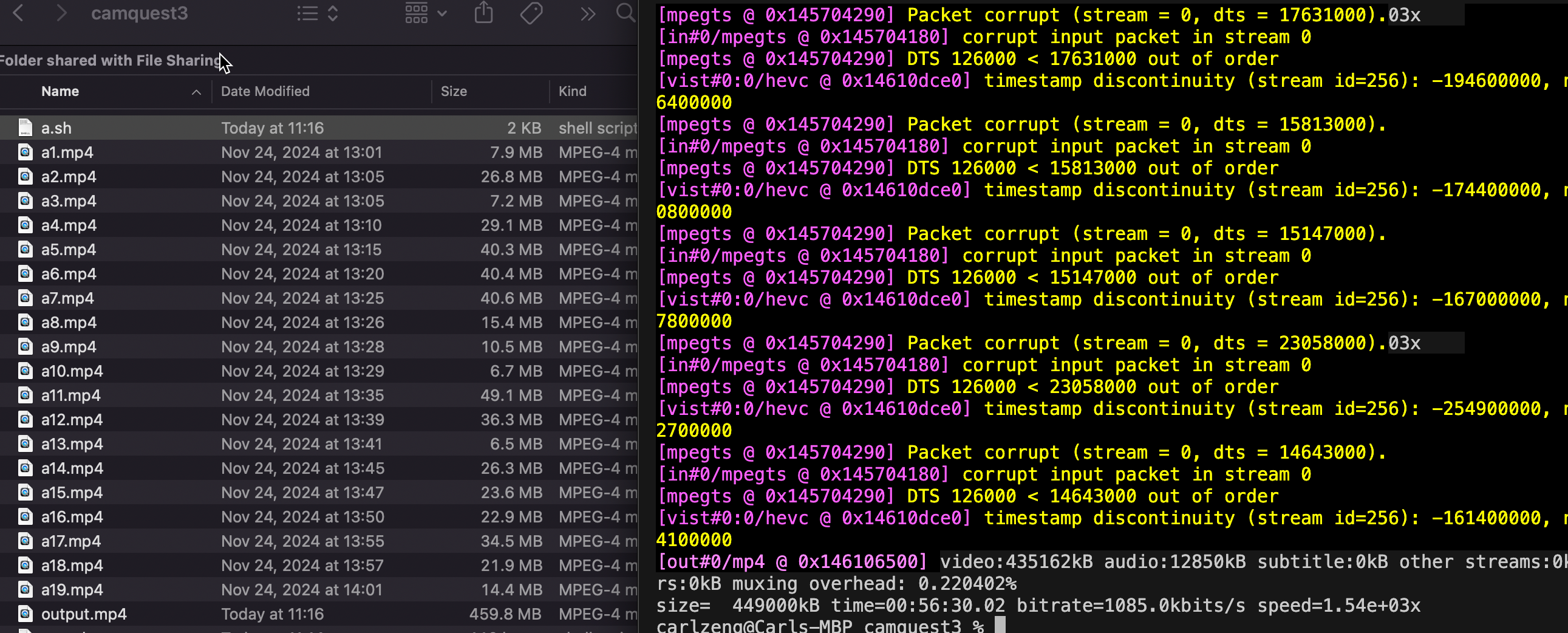
终端中,cd 到 mp4 的目录,执行 bash a.sh,等待即可;
错误及解决办法 1 2 3 4 5 6 7 8 9 ffmpeg -i a1.mp4 -vcodec copy -acodec copy -vbsf h264_mp4toannexb 1.ts [h264_mp4toannexb @ 0x127f2e760] Codec 'hevc' (173) is not supported by the bitstream filter 'h264_mp4toannexb' . Supported codecs are: h264 (27) [vost Error opening output file 1.ts. Error opening output files: Invalid argument
更换编码
从 h264_mp4toannexb 改成: hevc_mp4toannexb
成功拼接19个摄像头中的mp4文件: output.mp4, 一共19个文件, 合并后大小460MB, 约1小时时长.
成功拼接38个摄像头中的mp4文件: output.mp4. 一共38个文件, 合并后900MB, 2.5小时
灵感来源 使用 ffmpeg,完成多个 mp4 文件合并
拼接多张照片成视频 实践 1 ffmpeg -r 1 -f image2 -i 202411231%03d.jpg output202411231.mp4
下一步: 插入视频背景音乐
理论过程 使用ffmpeg将图片拼接成视频前,需要将图片文件名做下预处理,文件名中必须有数字将其次序标记出来,这里我直接使用数字将图片重命名了,如下:
直接使用命令ffmpeg -f image2 -i %d.jpeg output.mp4 就可以将其转为mp4视频,命令中的%d是数字编号占位符,ffmpeg会按次序加载1-250.jpeg做为输入。这里我们没有指定如何其他参数,所以ffmpeg使用了默认的参数,比如帧率是25fps,视频使用了h264编码,分辨率直接使用了图片原始分辨率……
-r 调整帧率 不指定帧率的话,ffmpeg会使用默认的25帧,也就是1秒钟拼接25张图片,我们可以通过调整帧率的大小来控制最终生成视频的时长。
1 ffmpeg -r 10 -f image2 -i %d.jpeg output1.mp4
如上命令每秒会拼接10张图片,250张图片最终会生成25秒的视频。这里需要注意-r 10 参数的位置,在-i %d.jpeg前面和在后面的效果是不一样的。放在-i后面只会改变输出的视频帧率,而输入的还是默认值25 ,比如ffmpeg -f image2 -i %d.jpeg -r 10 output1.mp4,250张图片依旧只会生成10s的视频,但视频的播放征率会减小到10。
-b:v 调整视频码率 -b:v bitrate of video。如果原始图片比较大,默认参数生成的视频大小会比较大。比如上文中我使用的图片都是2k的高清图,最终生成的10s视频就有35MB,码率有近30Mb/s(码率是只1s播过的数据量,注意这里单位是小b)。
1 ffmpeg -r 10 -f image2 -i %d.jpeg -b:v 4M output2.mp4
这里额外提醒下,改变码率会影响到视频清晰度,但并不意味着高码率的视频一定比低码率的视频清晰度更高,这还取决于视频编码格式,比如h265编码可以用更小的码率生成h264同等的视频质量,像av1、v8、v9等编码也优于h264。
-crf 调整视频质量 -crf Constant Rate Factor,用以平衡视频质量和文件大小的参数,FFMPEG里取值范围为0-51,取值越高内容损失越多,视频质量更差。 ffmpeg的默认值是23,建议的取值范围是17-28。
1 ffmpeg -r 10 -f image2 -i %d.jpeg output3.mp4
-c:v 调整视频的编码格式 -c:v codec of video。目前ffmpeg针对于mp4默认使用的是h264,你可以使用-c:v libx265生成同等质量,但文件更小的h265视频。
1 ffmpeg -f image2 -i %d.jpeg -c:v libx265 output4.mp4
output4.mp4相比于上文中生成的output.mp4,视频文件大小减少了60%,但视频质量不变。你也可以使用-c:v libvpx -c:v libvpx-vp9分别生成v8和v9编码的webm文件。
1 ffmpeg -f image2 -i %d.jpeg -c:v libvpx output-v8.webm
-vf scale 调整视频分辨率 -vf scale: Video Filter Scale
1 ffmpeg -f image2 -i %d.jpeg -s 640x480 output5.mp4
上面的命令会将视频直接调整为640x480的分辨率,如果原始图片不是4:3 肯定是会对原始图像做拉伸的。可以使用下面的命令等比例缩放
1 ffmpeg -f image2 -i %d.jpeg -vf scale=-1:480 output5.mp4
以上就是几个常用的参数,这几个参数不仅限于图片转视频,视频转视频时也可以使用。
插入视频背景音乐 ffmpeg -an -i video.mp4 -stream_loop -1 -i bgm.mp3 -c:v copy -t 60 -y output_bgm.mp4
-an -i 代表消除源视频中的音频
-t 60 剪裁60秒
实例:
1 2 3 4 5 6 ffmpeg -an -i output.mp4 -stream_loop -1 -i bgm.mp3 -c:v copy -t 2400 -y output_bgm.mp4
其他
2、视频编辑
比如从第5秒的地方开始,往后截取10秒钟
ffmpeg -ss 5 -t 10 -i output1.mp4 output2.mp4
4、视频加速
ffmpeg -i result.mp4 -vf setpts=PTS/2 -af atempo=2 result01.mp4
6、调整视频宽高
ffmpeg -i result.mp4 -vf scale=320*240 result02.mp4
实际用例模版 1. 组合监控截图 打开Terminal, cd 拉到NAS的目录中 cd /Volumes/homes/13261977480/Photos/ 生成视频:
1 2 cd /Volumes/homes/13261977480/Photos/ffmpeg -r 1 -f image2 -i 202411231%03d.jpg output202411231.mp4
一条命令将特定一组的监控截图拼接/合成成为视频mp4文件
背景说明: 由于这一组的监控截图时通过以下的命令, 定时从监控摄像头中截取/抽帧而来.
nohup ffmpeg -i “rtsp://: @192.168.6.21:554” -y -f image2 -r 1/180 /volume2/homes/13261977480/Photos/202411231%03d.jpg > /dev/null 2>&1
实例
1 2 3 4 5 6 7 cd /Users/carlzeng/.ssh ./sshNas.sh cd /Volumes/homes/13261977480/Photos/ ffmpeg -r 1 -f image2 -i 202503073%03d.jpg Quest3更换摇杆202503073.mp4 ffmpeg -an -i Quest3更换摇杆202503073.mp4 -stream_loop -1 -i bgm.mp3 -c:v copy -t 23 -y Quest3更换摇杆20250307_bgm.mp4
2. 添加背景音乐 预览一下上面那个组合起来的视频, 看看总时长时多少(比如: 44秒)
1 ffmpeg -an -i output202412031.mp4 -stream_loop -1 -i bgm.mp3 -c:v copy -t 44 -y output_bgm.mp4
一条命令将mp4文件合成了背景音乐, 这第二条命令合并背景音乐, 并制定视频的总时长(如: 44秒)
AI生成Python程序 1 2 3 4 5 6 7 8 9 10 11 12 13 14 15 16 17 18 19 20 21 22 23 24 25 26 27 28 29 30 31 32 33 34 35 36 37 38 39 40 41 42 43 44 45 46 47 48 49 50 import ffmpegimport sysimport globdef create_video_from_images (image_pattern, output_video, frame_rate=1 ): ( ffmpeg .input (image_pattern, framerate=frame_rate) .output(output_video) .run() ) def add_background_music (video_file, audio_file, output_file ): ( ffmpeg .input (video_file, an=None ) .input (audio_file, stream_loop=-1 ) .output(output_file, vcodec='copy' ) .run() ) def count_images (image_pattern ): return len (glob.glob(image_pattern)) if __name__ == "__main__" : if len (sys.argv) < 4 : print ("Usage: python video_creation.py <image_pattern> <output_video> <audio_file>" ) sys.exit(1 ) image_pattern = sys.argv[1 ] output_video = sys.argv[2 ] audio_file = sys.argv[3 ] num_images = count_images(image_pattern) if num_images == 0 : print ("No images found with the specified pattern." ) sys.exit(1 ) duration = num_images create_video_from_images(image_pattern, output_video) output_with_bgm = output_video.replace('.mp4' , '_bgm.mp4' ) add_background_music(output_video, audio_file, output_with_bgm) print (f"Video with background music created: {output_with_bgm} " )
1 2 3 4 5 6 python3 video_creation.py 202511281%03d.jpg SwitchOLED挖孔硬解2025 11281.mp4 bgm.mp3 Traceback (most recent call last): File "video_creation.py", line 1, in import ffmpeg ModuleNotFoundError: No module named 'ffmpeg'
1 2 3 4 5 root@DS918:/volume2/homes/13261977480/Photos# python --version Python 3.8.12 root@DS918:/volume2/homes/13261977480/Photos# pip3 install ffmpeg-python
POE的assistant没有帮我解决问题(开始提示点数到了, 将要无法免费),
最终是doubao的AI 写出来一个可用的:
1 2 3 4 5 6 7 8 9 10 11 12 13 14 15 16 17 18 19 20 21 22 23 24 25 26 27 28 29 30 31 32 33 34 35 36 37 38 39 40 41 42 43 44 45 46 47 48 49 50 51 52 53 54 55 56 57 58 59 60 61 62 63 64 65 66 67 68 69 70 71 72 73 74 75 76 77 78 79 80 81 82 83 84 85 86 87 88 89 90 91 92 93 94 95 96 97 98 99 100 101 102 103 104 105 106 107 108 109 110 111 112 113 import subprocessimport osimport sysimport reimport tempfiledef check_ffmpeg (): try : subprocess.run(["ffmpeg" , "-version" ], stdout=subprocess.PIPE, stderr=subprocess.PIPE, check=True ) return True except : print ("错误:未找到FFmpeg" ) return False def count_images_by_pattern (img_pattern: str ) -> int : digit_match = re.search(r'%0(\d+)d' , img_pattern) if not digit_match: print (f"错误:图片模式格式不合法" ) return 0 digit_len = int (digit_match.group(1 )) folder = os.path.dirname(img_pattern) or "." filename_template = os.path.basename(img_pattern) prefix = filename_template.split('%0' )[0 ] suffix = filename_template.split('d' )[-1 ] count = 0 for file in os.listdir(folder): if file.startswith(prefix) and file.endswith(suffix): num_str = file[len (prefix):-len (suffix)] if num_str.isdigit() and len (num_str) == digit_len: count += 1 return count def images_to_video_with_temp ( img_pattern: str , final_video: str , fps: int = 1 , bgm_path: str = "bgm.mp3" , overwrite: bool = True if not check_ffmpeg(): return False if not os.path.exists(bgm_path): print (f"错误:背景音乐文件不存在" ) return False img_count = count_images_by_pattern(img_pattern) if img_count == 0 : return False video_duration = img_count / fps with tempfile.NamedTemporaryFile(suffix='.mp4' , delete=False ) as temp_file: temp_video = temp_file.name try : cmd1 = [ "ffmpeg" , "-r" , str (fps), "-f" , "image2" , "-i" , img_pattern, "-c:v" , "libx264" , "-pix_fmt" , "yuv420p" , "-y" if overwrite else "-n" , temp_video ] print (f"执行命令:{' ' .join(cmd1)} " ) result1 = subprocess.run(cmd1, stdout=subprocess.PIPE, stderr=subprocess.PIPE, text=True , check=True ) cmd2 = [ "ffmpeg" , "-an" , "-i" , temp_video, "-stream_loop" , "-1" , "-i" , bgm_path, "-c:v" , "copy" , "-t" , f"{video_duration:.2 f} " , "-y" if overwrite else "-n" , final_video ] print (f"执行命令:{' ' .join(cmd2)} " ) result2 = subprocess.run(cmd2, stdout=subprocess.PIPE, stderr=subprocess.PIPE, text=True , check=True ) print (f"✅ 成功!最终文件:{final_video} " ) return True except subprocess.CalledProcessError as e: print (f"❌ 命令失败:{e.cmd} " ) print (f"错误输出:{e.stderr} " ) return False finally : if os.path.exists(temp_video): os.unlink(temp_video) print (f"ð️ 已删除临时文件:{temp_video} " ) def main (): if len (sys.argv) != 3 : print ("用法:python video_maker.py <image_pattern> <output_video>" ) sys.exit(1 ) img_pattern = sys.argv[1 ] final_video = sys.argv[2 ] success = images_to_video_with_temp(img_pattern, final_video) sys.exit(0 if success else 1 ) if __name__ == "__main__" : main()
继续优化成无需写硬盘(缓存第一个mp4文件), 直接用内存缓冲, 减轻硬盘读写压力, 优化速度.
过程简化为:
1 2 3 4 5 6 7 8 9 10 11 12 13 # 打开terminal类工具 cd /volume2/homes/13261977480/Photos # 找到需要转化为视频的照片的名称202601081033 python3 video_creation.py 202601081%03d.jpg Joycon2更换摇杆20260108.mp4 # 打开浏览器下载或直接使用NAS中的视频文件后者下载到本机 # Network》DS918, connect as 登陆 # 排序按Kind, 找到视频文件; 拉到网站上上传; TODO: 要是有接口上传就好了 # [无效]或者ssh下载文件 (无效, 由于有中文字符,命令行报错) # scp carlzeng@192.168.1.117:/volume2/homes/13261977480/Photos/Joycon2更换摇杆20260108.mp4 ~/Downloads/
3. 发布到B站/抖音等等 3.1 打开Bilibili创作中心 - 投稿 , 直接拉入在NAS中生成的视频文件(完成上传)
填写基础及说明信息, 提交投稿
3.2 打开抖音网页版 抖音创作者中心 - 发布视频
3.3 打开小红书网页版 创作服务平台 - 发布笔记
关键字:
Switch PS5 Xbox手柄快修 Steamdeck Quest
博主 www.carlzeng.com
海鲜市场账号: 手柄一修哥
小电玩专修 专业现场手柄快修 游戏手柄/主机修复 实时监控查看 switch ps5 xbox
坐标: 北京通州
个性化需求沟通 扫客服加V加群: